24. Website Panel Setup
The Website Panel is the customer-facing ordering site — a Laravel 12 application that reads and writes Firestore through the Firebase JS SDK. Upload it to your main domain (recommended) and extract it.
24.1. Upload the files
24.1.1. Connect over FTP/SFTP using your server IP, username and password — port 21 for FTP, port 22 for SFTP.
24.1.2. Transfer the ZIP file to the server, for example /var/www/html.
24.1.3. Extract it from the terminal or the cPanel File Manager:
unzip your-application.zip
24.1.4. Point the domain’s document root at the project’s public/ folder.
24.2. Configure the panel
24.2.1. Install the dependencies and generate the application key:
composer install
cp .env.example .env
php artisan key:generate
24.2.2. Create a MySQL database for this panel and import the .sql file supplied with the Website Panel package — through phpMyAdmin → Import, or from the command line:
mysql -u your_db_user -p your_database < website_panel.sql
There is no php artisan migrate step; the .sql file already contains the tables and default data.
24.2.3. Add the same Firebase credentials used by the other panels:
APP_NAME=Foodie
APP_URL=https://yourdomain.com
DB_DATABASE=your_database
DB_USERNAME=your_db_user
DB_PASSWORD=your_db_password
FIREBASE_PROJECT_DB=(default)
FIREBASE_APIKEY=
FIREBASE_AUTH_DOMAIN=
FIREBASE_DATABASE_URL=
FIREBASE_PROJECT_ID=
FIREBASE_STORAGE_BUCKET=
FIREBASE_MESSAAGING_SENDER_ID=
FIREBASE_APP_ID=
FIREBASE_MEASUREMENT_ID=
# Required for "Sign in with Google"
GOOGLE_CLIENT_ID=
24.3. Google login
Add your Google Client ID exactly as described for the Restaurant Panel:
- Firebase Console → Authentication → Sign-in method → Google.
- Expand Web SDK configuration and copy the Web client ID.
- Paste it into
GOOGLE_CLIENT_IDin this panel’s.env. - In Google Cloud Console → APIs & Services → Credentials, add your website domain to the OAuth client’s Authorized JavaScript origins and add
https://yourdomain.com/__/auth/handlerto the Authorized redirect URIs. - Add the domain under Firebase Authentication → Settings → Authorized domains.
Notes: use the same Firebase credentials here that you set for the Admin and Restaurant panels, including FIREBASE_PROJECT_DB. All three panels and the mobile apps must point at one Firebase project and one Firestore database.
24.4. Go live
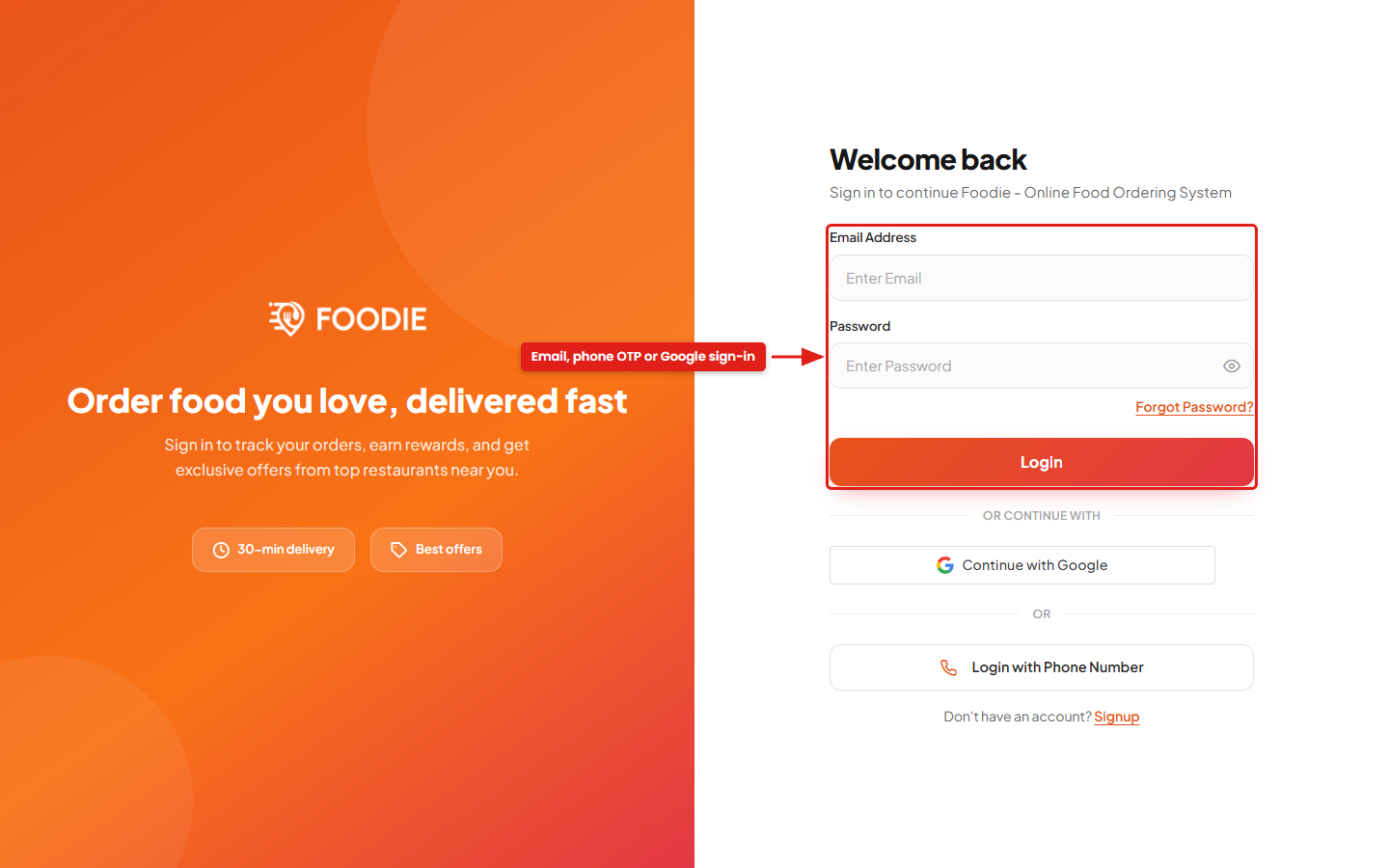
The site is now ready at your domain, for example https://yourdomain.com/. Its home banners, footer and content pages are all driven from the Admin Panel — see Customizing Branding.