23. Restaurant Panel Menus Overview
The restaurant sidebar is built for the logged-in account, so it differs from one vendor to the next. An item appears only when the owner’s account allows it and the matching platform feature is switched on in the Admin Panel — dine-in, advertisements, self delivery, employee management and document verification are all optional. Employees see only what their role permits.
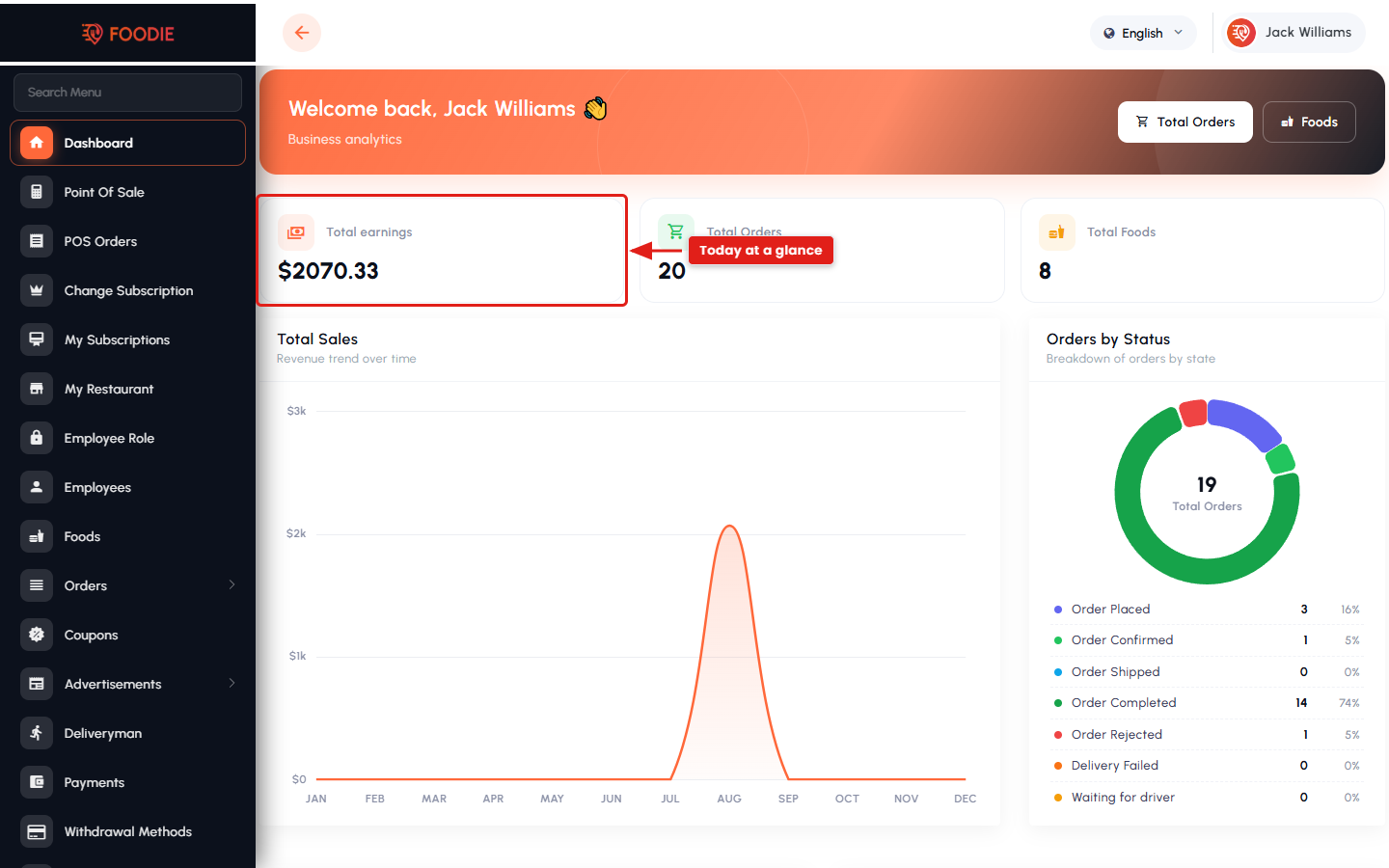
23.1. Dashboard
An overview of the restaurant’s operations — active, ongoing and completed orders, latest orders, top-performing delivery staff and an earnings summary. It is the screen a restaurant keeps open during service.
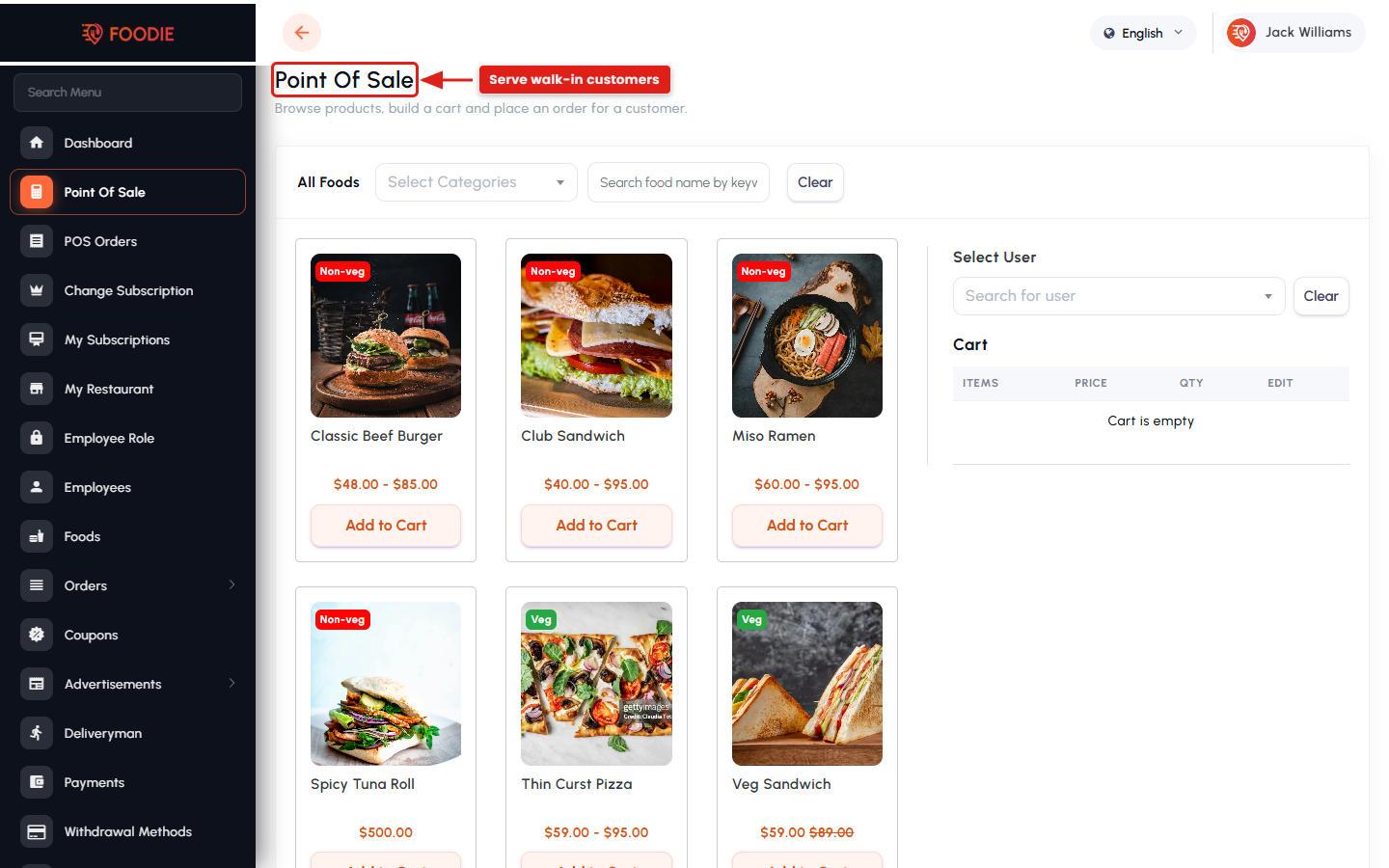
23.2. Point of Sale
Take walk-in and counter orders from the panel: add items with add-ons and variants, apply taxes and discounts, and settle the payment. POS orders are recorded alongside app orders, so sales figures stay complete.
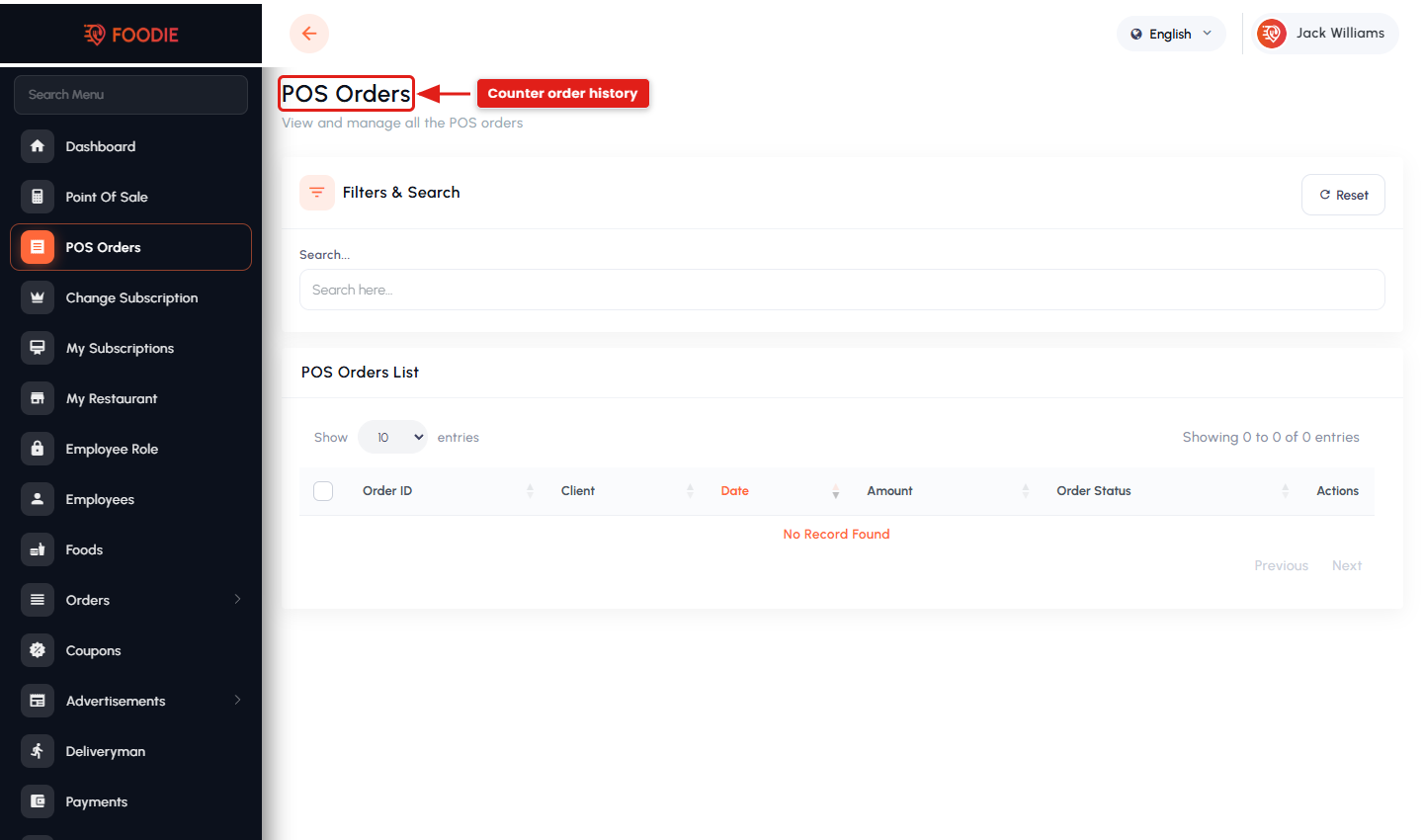
23.3. POS Orders
The history of orders created through the POS, with item breakdowns and totals — used for shift reconciliation and for resolving counter disputes.
23.4. Documents
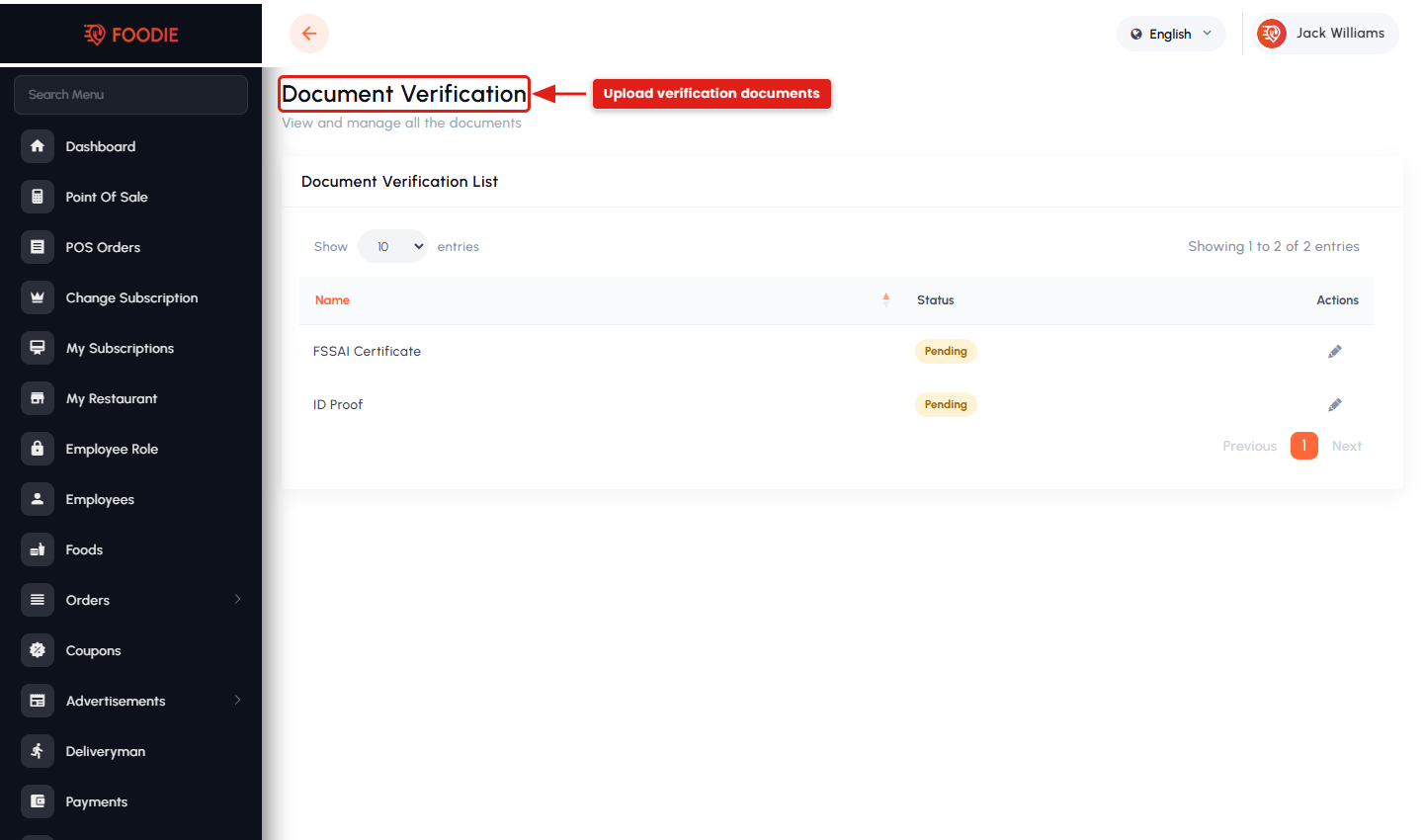
Where the owner uploads the documents the platform requires — identity proof, business licence, food-safety certificate and any others the admin defined. The account stays limited until the admin approves them. This menu is hidden when restaurant document verification is turned off.
23.5. Change Subscription
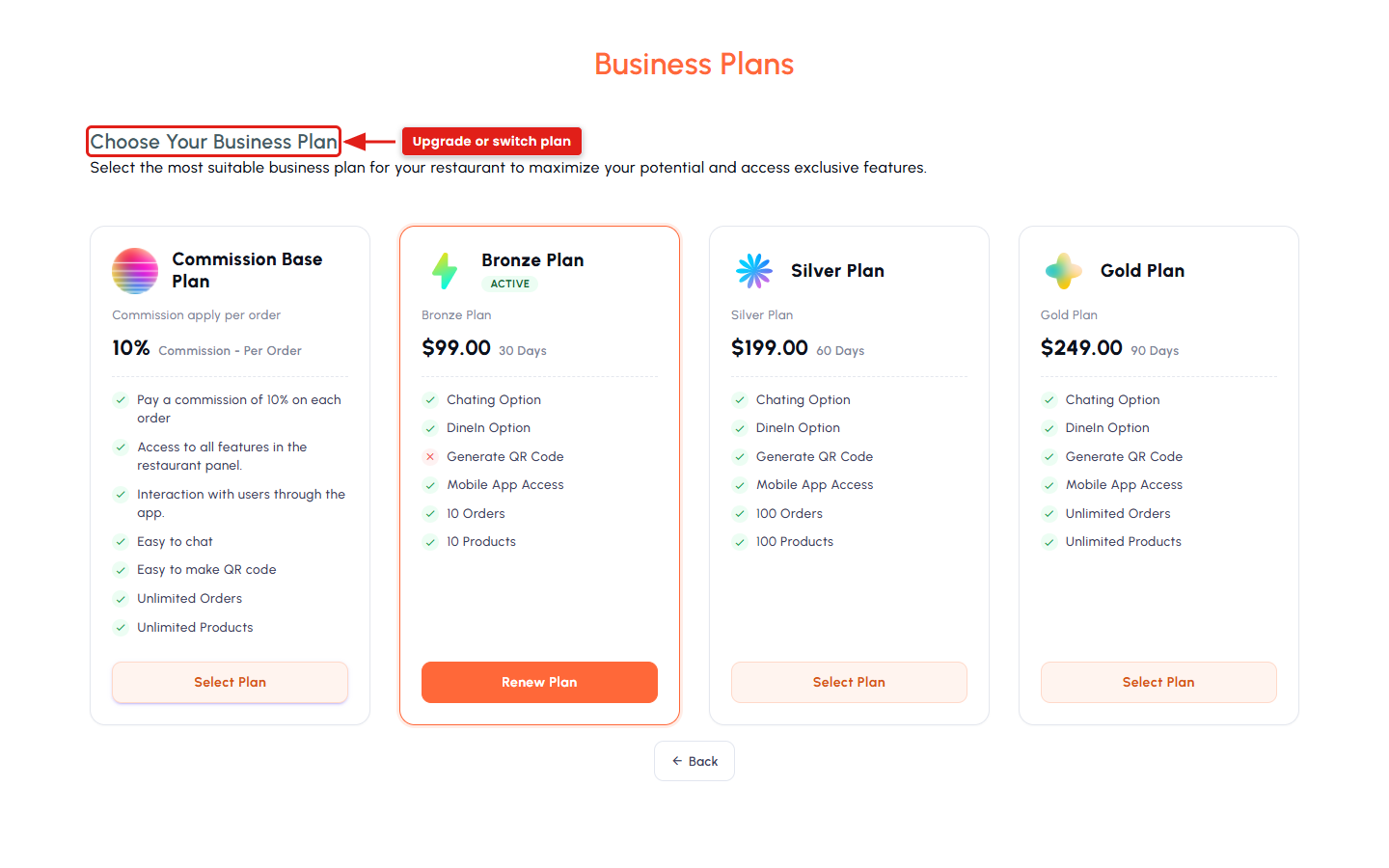
Browse the available plans with their pricing and features, then upgrade, downgrade or switch. Shown when the platform runs on the subscription or hybrid business model.
23.6. My Subscriptions
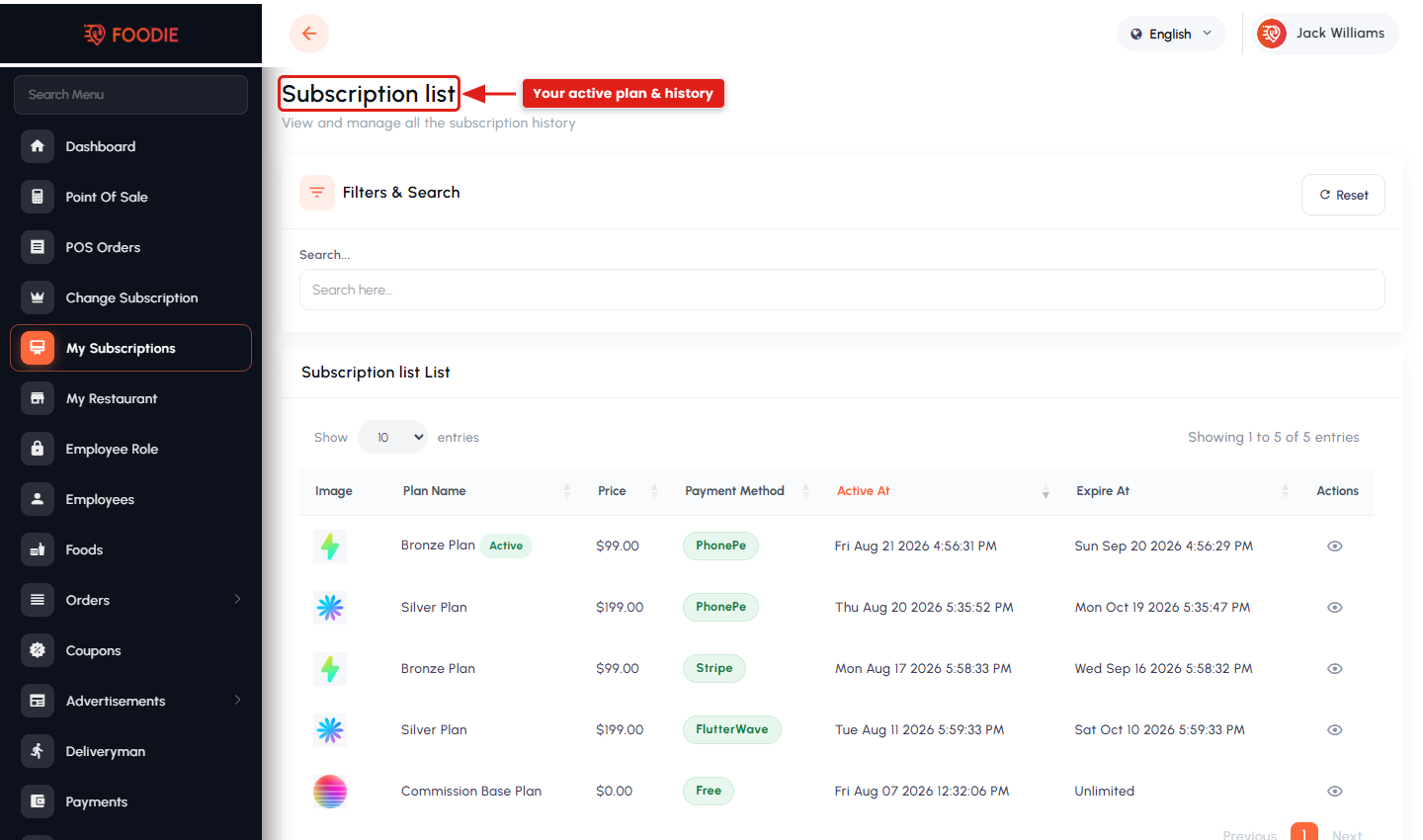
The owner’s current and past subscriptions — plan, start and expiry dates, included features, payment history and renewal options.
23.7. My Restaurant
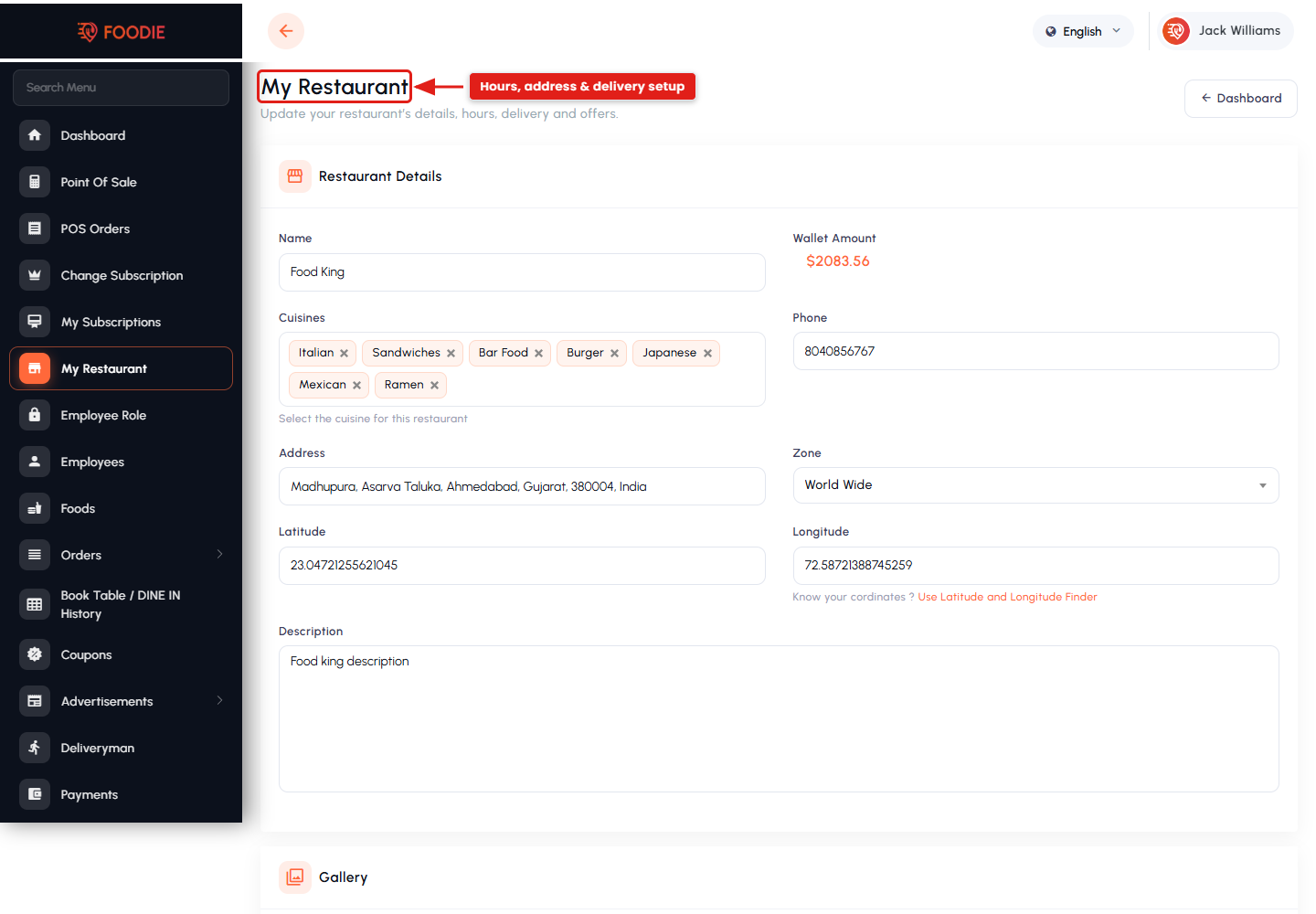
All the details of the owner’s own restaurant: name, logo and photos, address and map pin, contact details, opening hours, delivery settings, delivery radius, tax details and the open/closed status. Keeping this accurate is what makes the restaurant show up correctly in customer search.
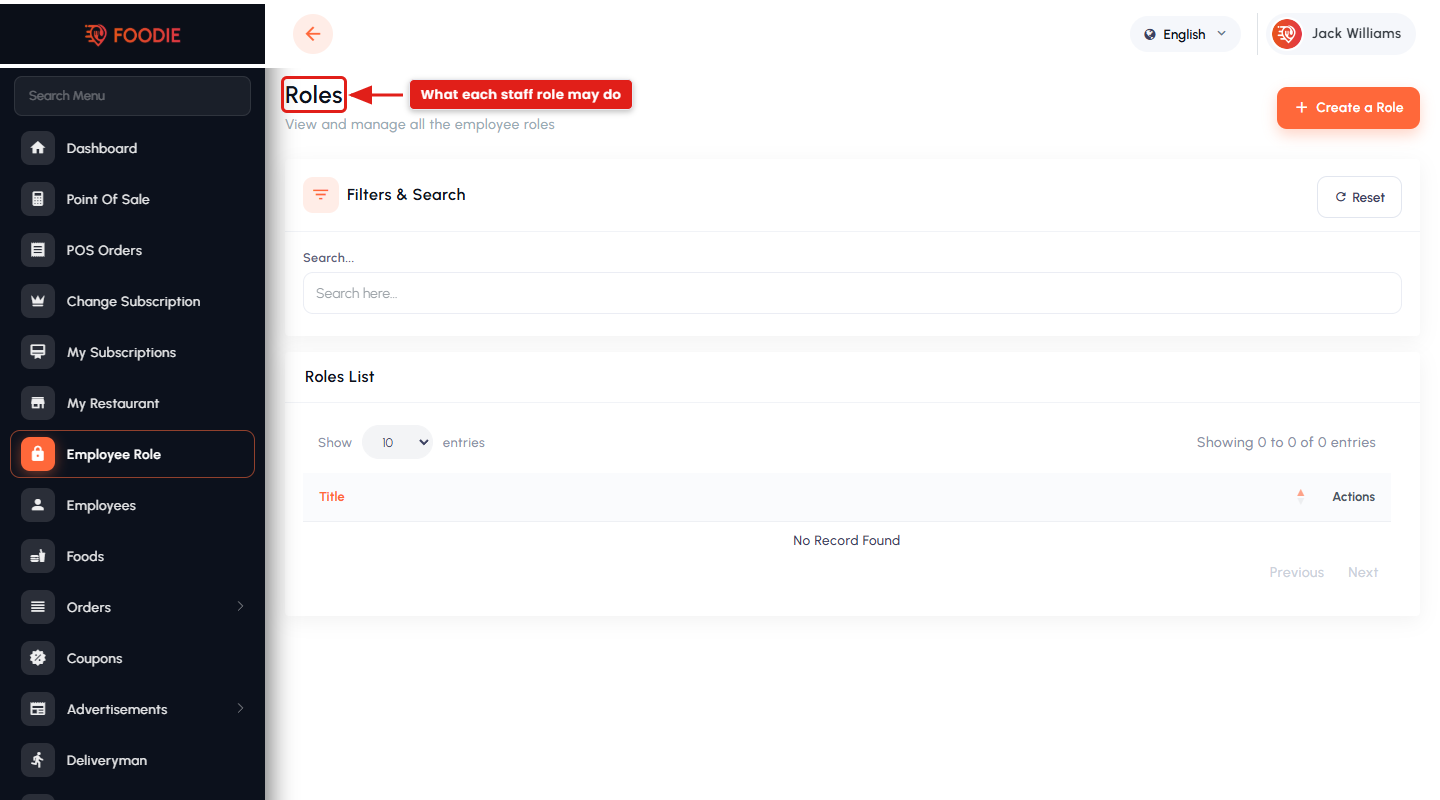
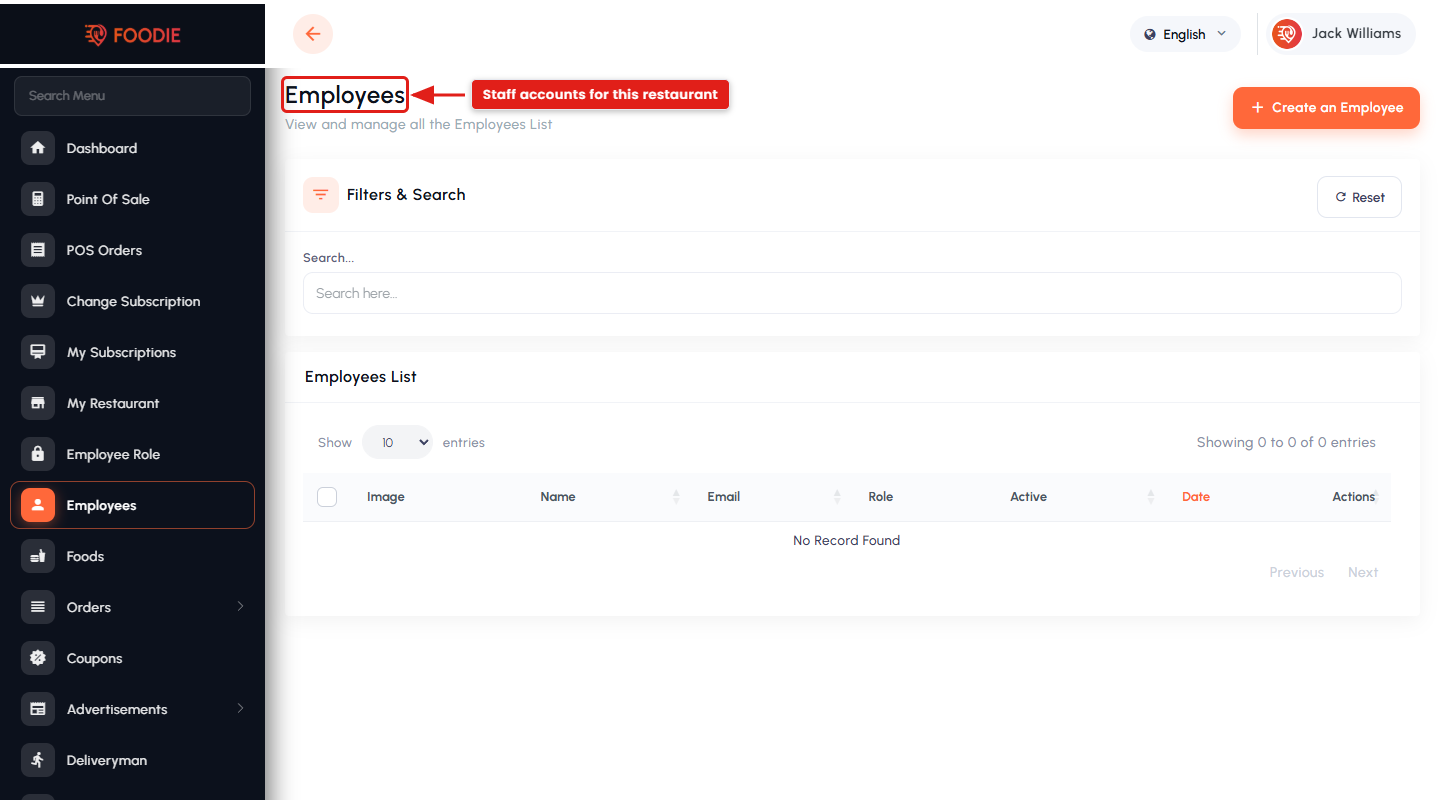
23.8. Employee Roles & Employees
When employee management is enabled, the owner can create roles that limit which panel screens a staff member may use, then create employee accounts and assign those roles. It lets a manager handle orders without seeing payouts, for example.
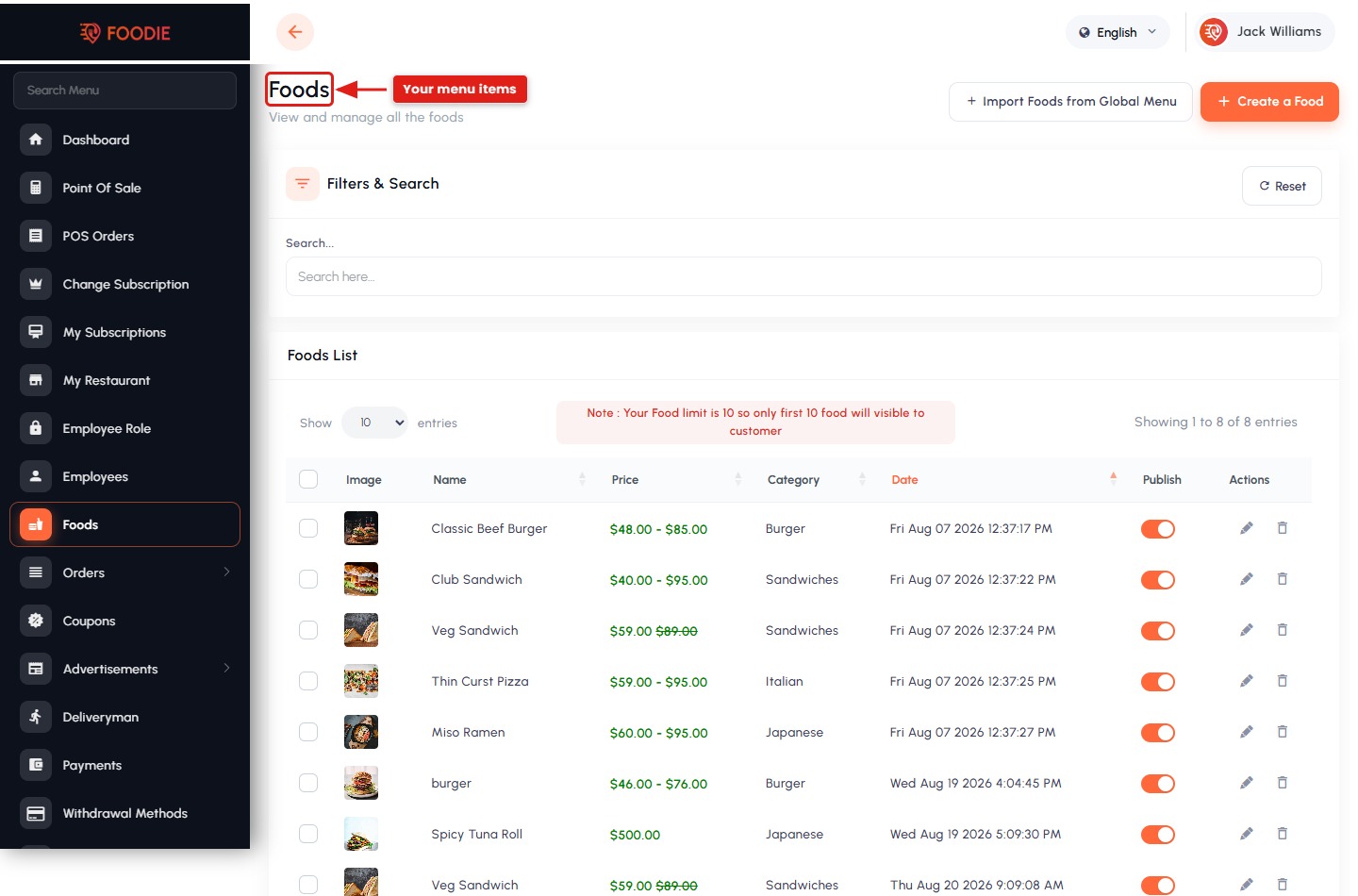
23.9. Foods
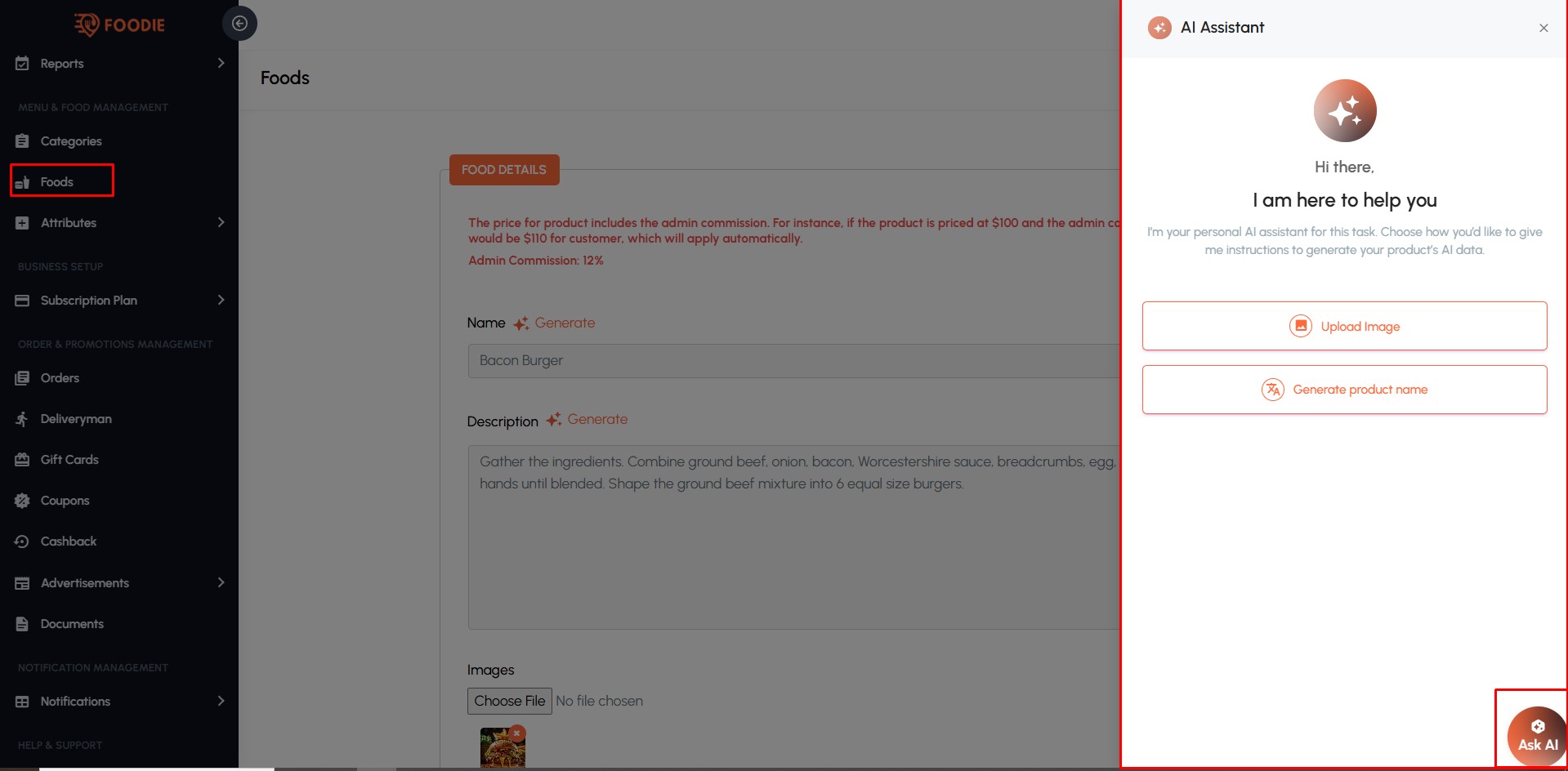
The restaurant’s menu. Add, edit or remove items with name, category, price, description, images, availability, add-ons and variants such as size or flavour. Items can also be pulled in from the admin’s global menu, which populates a new restaurant in minutes, and the AI assistant
can draft an item’s details from its photo and title.
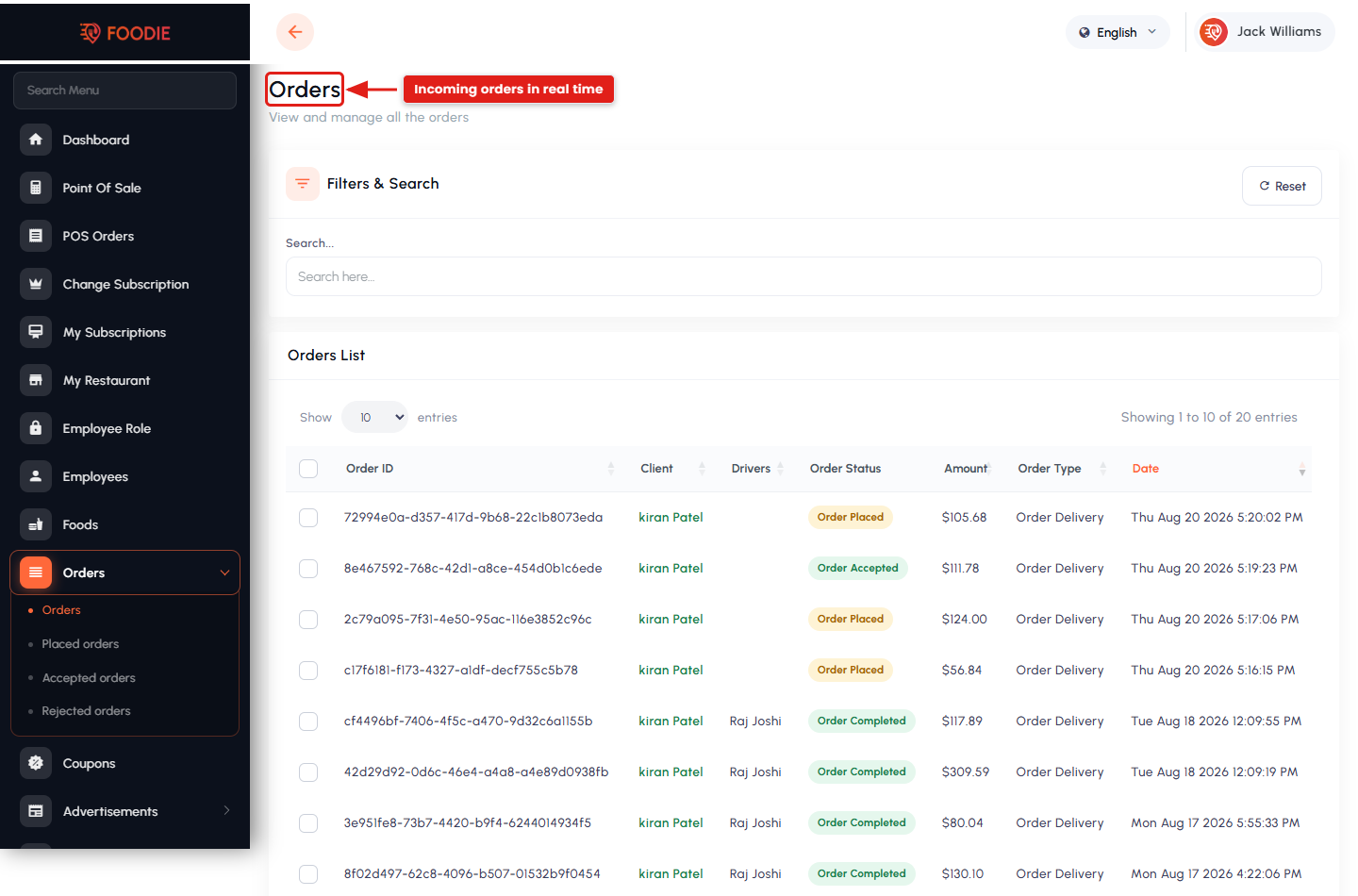
23.10. Orders
Every order the restaurant receives, with the customer, items, totals, payment status and delivery type. Move an order through its states in real time — accepted, preparing, ready for pickup, handed to the driver, delivered — assign a deliveryman when self delivery is on, cancel when necessary, and
print the order slip.
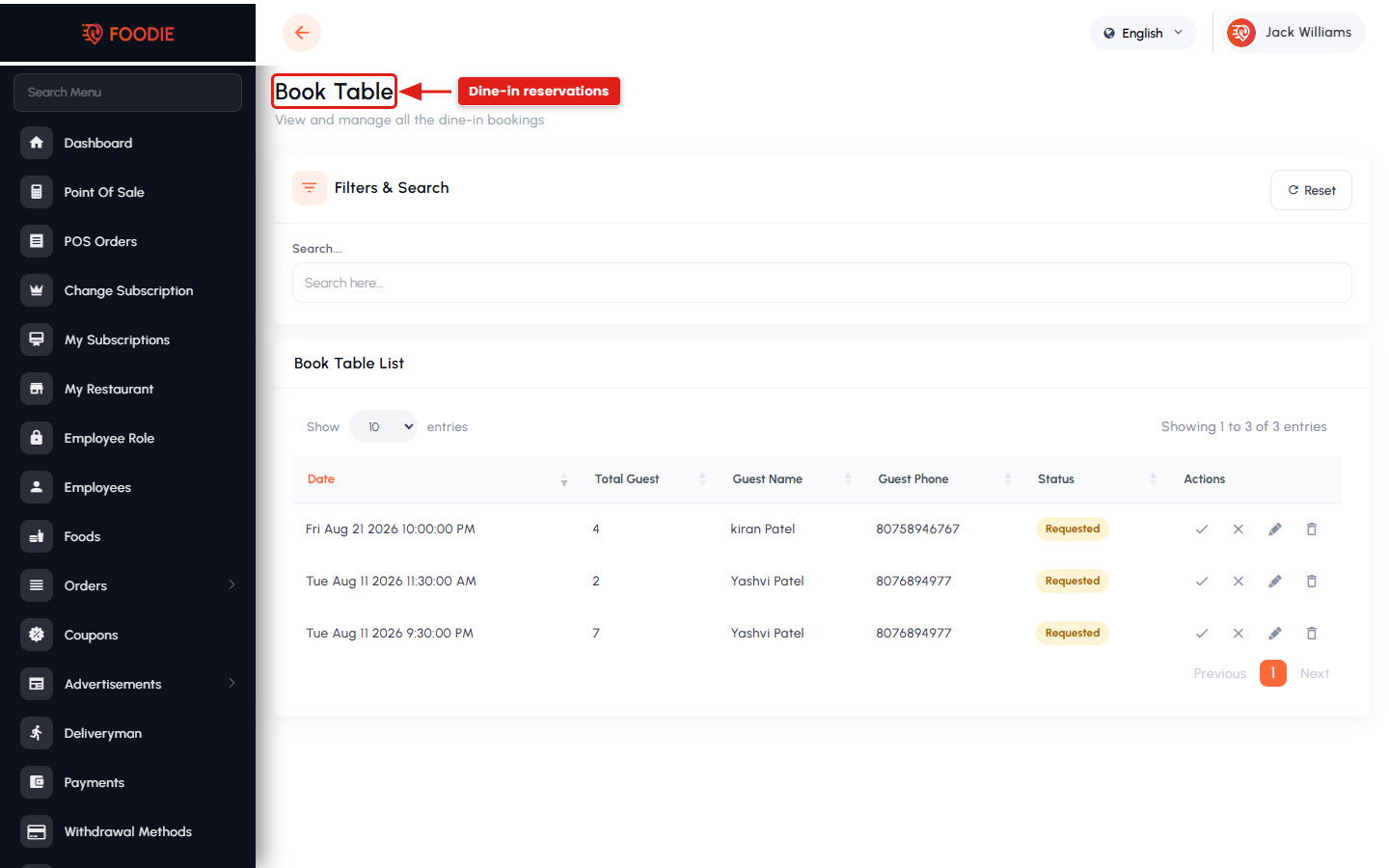
23.11. Book Table / Dine-In History
Table booking and dine-in requests: customer name, contact, number of guests, date and time slot. Confirm, modify or cancel a reservation, and review past and upcoming bookings. Shown when the dine-in feature is enabled for restaurants.
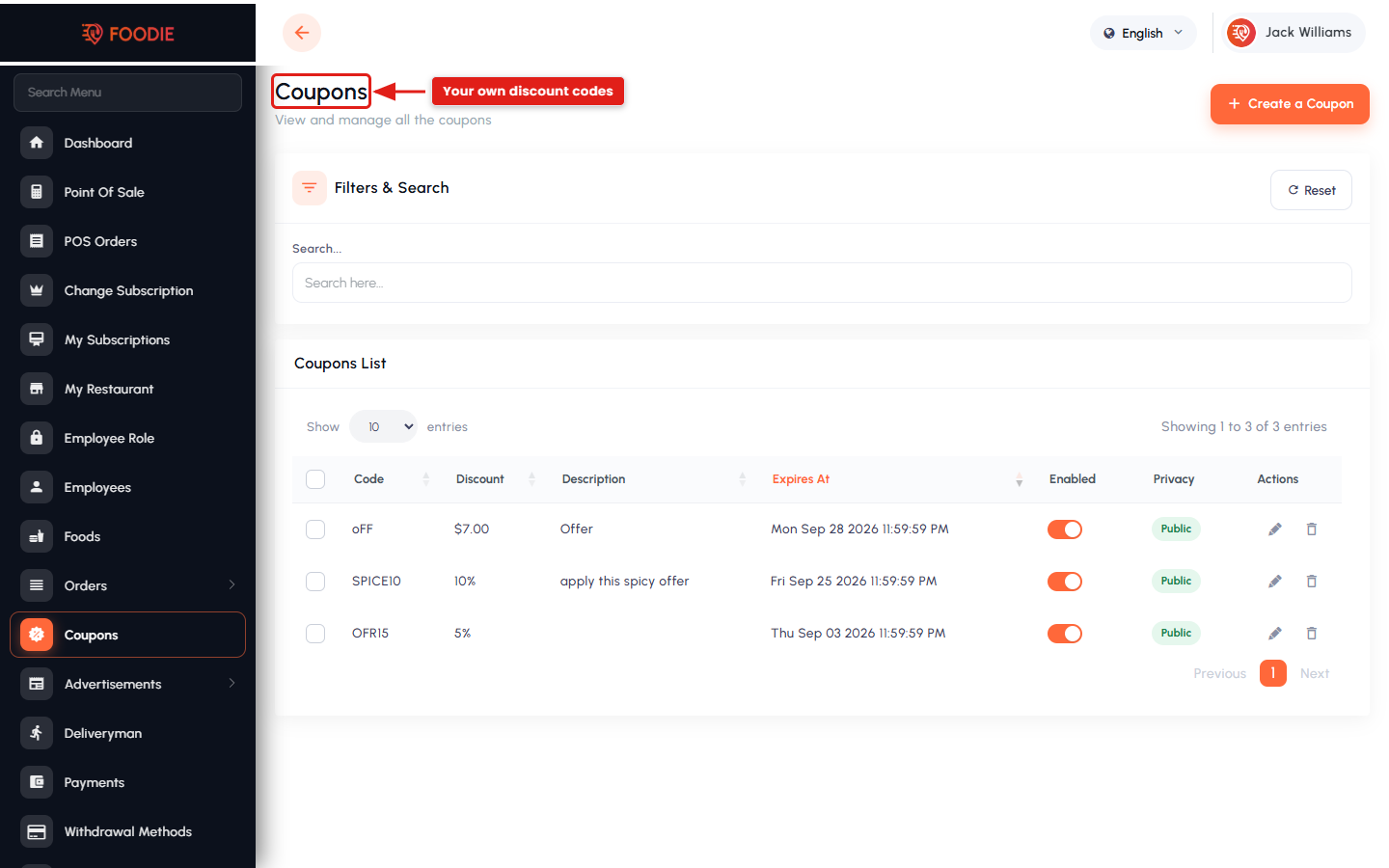
23.12. Coupons
Discount codes the restaurant runs itself — code, discount type (percentage or fixed), minimum order value, validity period and usage limits, applied to specific items or the whole restaurant. Validation happens automatically at checkout.
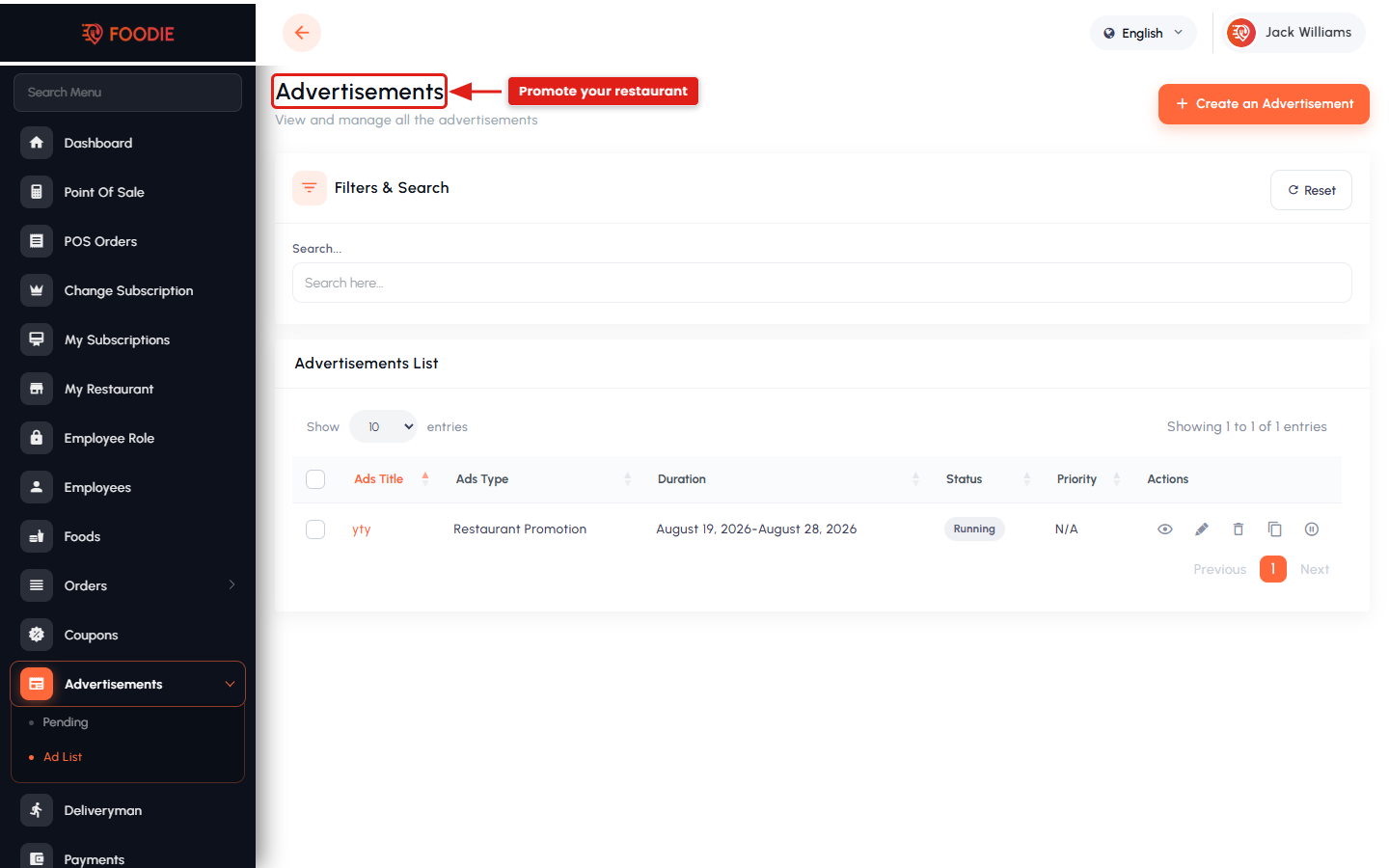
23.13. Advertisements
Create promotional slots for the restaurant or a specific dish — banner, title, link, placement and duration — and submit them to the admin for approval. Shown when the advertisement feature is enabled.
23.14. Deliveryman
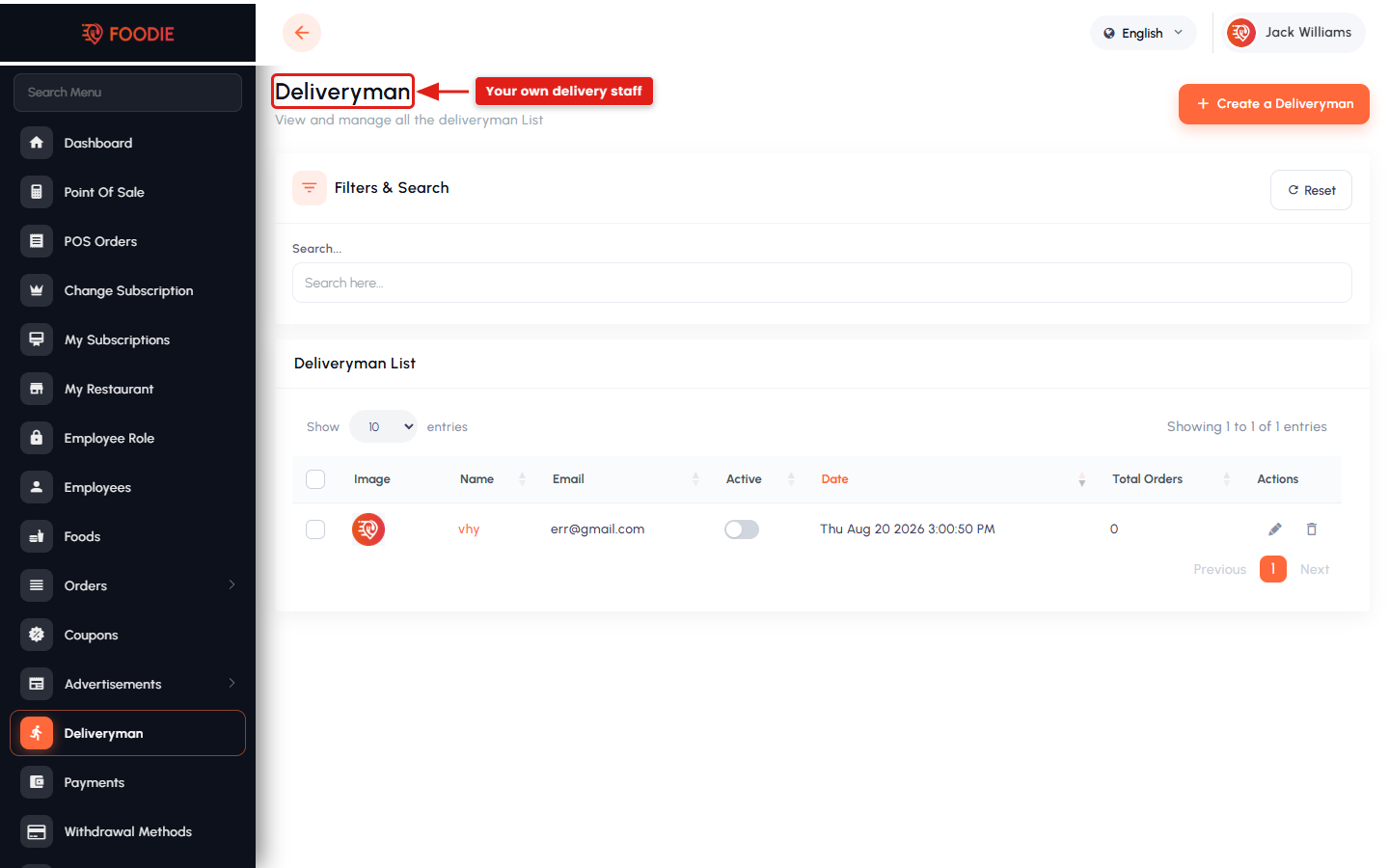
The restaurant’s own delivery staff under the self delivery feature. Add, edit or remove deliverymen, see who is available or busy, and assign them to orders. Shown when self delivery is enabled.
23.15. Payments
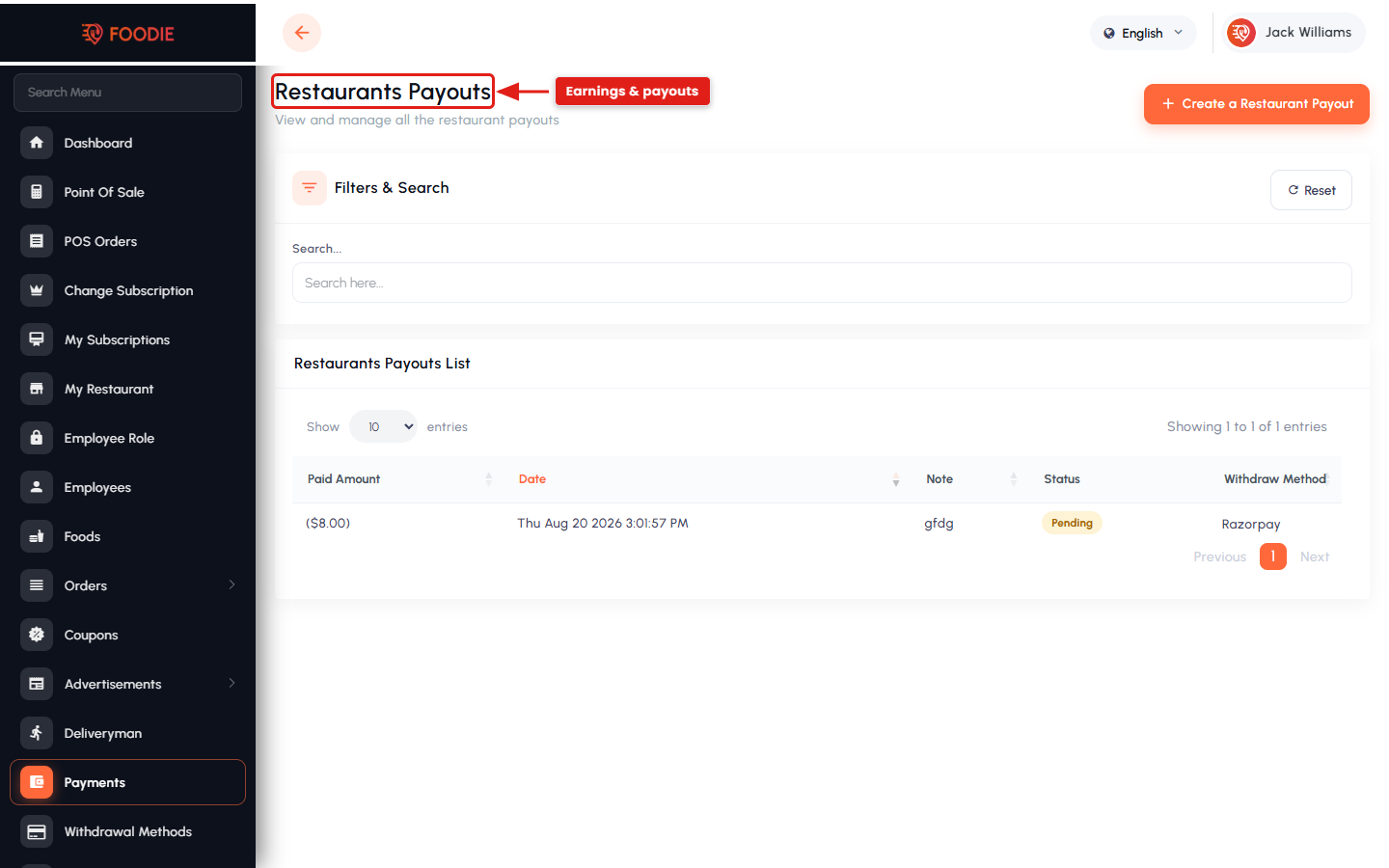
Earnings and payout history — total revenue, commission deducted, completed payouts and the pending balance, with the transaction detail behind each line. Payout requests are raised from here when manual payouts are in use.
23.16. Withdrawal Methods
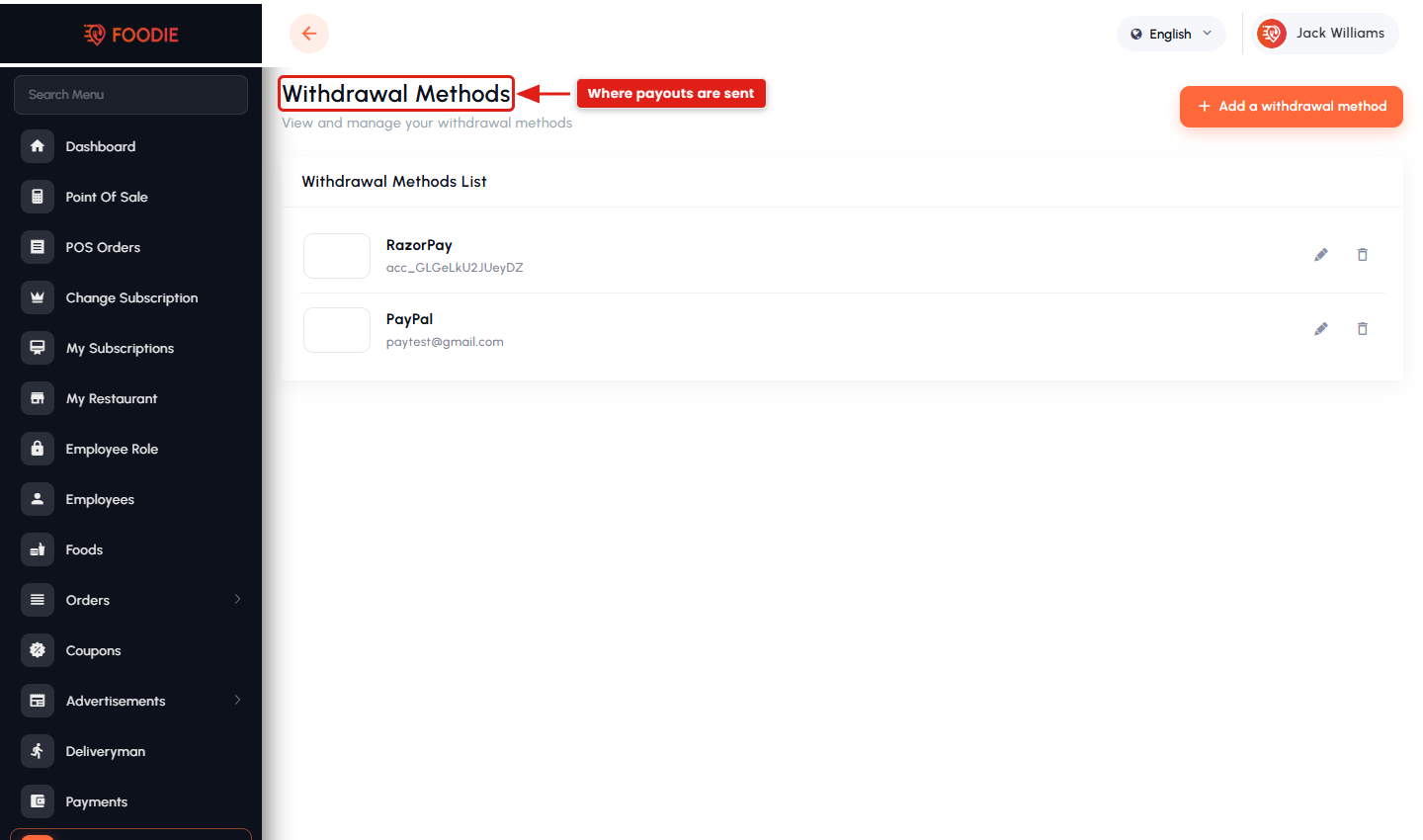
The accounts the owner wants to be paid into — bank transfer, PayPal or another supported method. The admin may review these before approving a payout.
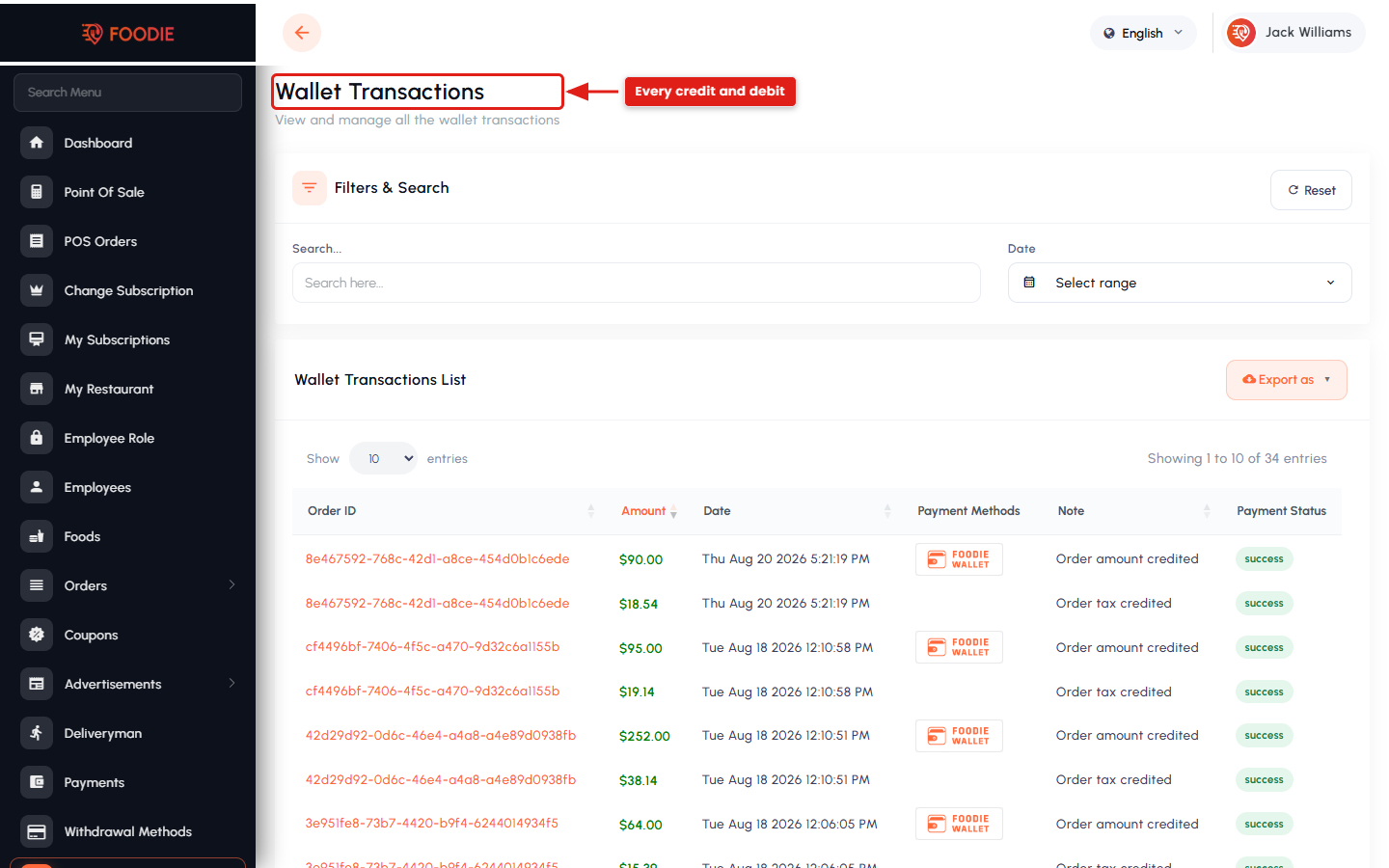
23.17. Wallet Transactions
Every credit and debit on the restaurant’s wallet — received payments, cashback, order adjustments and withdrawals — each with date, description, amount and resulting balance.