25. Create Google Map API Key
Foodie uses Google Maps for restaurant search, address selection, delivery-distance calculation and live driver tracking. One key can serve the panels and the apps, but restricting it per platform is safer.
25.1. Go to the
Google Maps Platform and click Get started.
25.2. Open the Google Cloud Console, go to Billing, and confirm your billing details are up to date — Google Maps returns a grey map or a watermark without an active billing account.
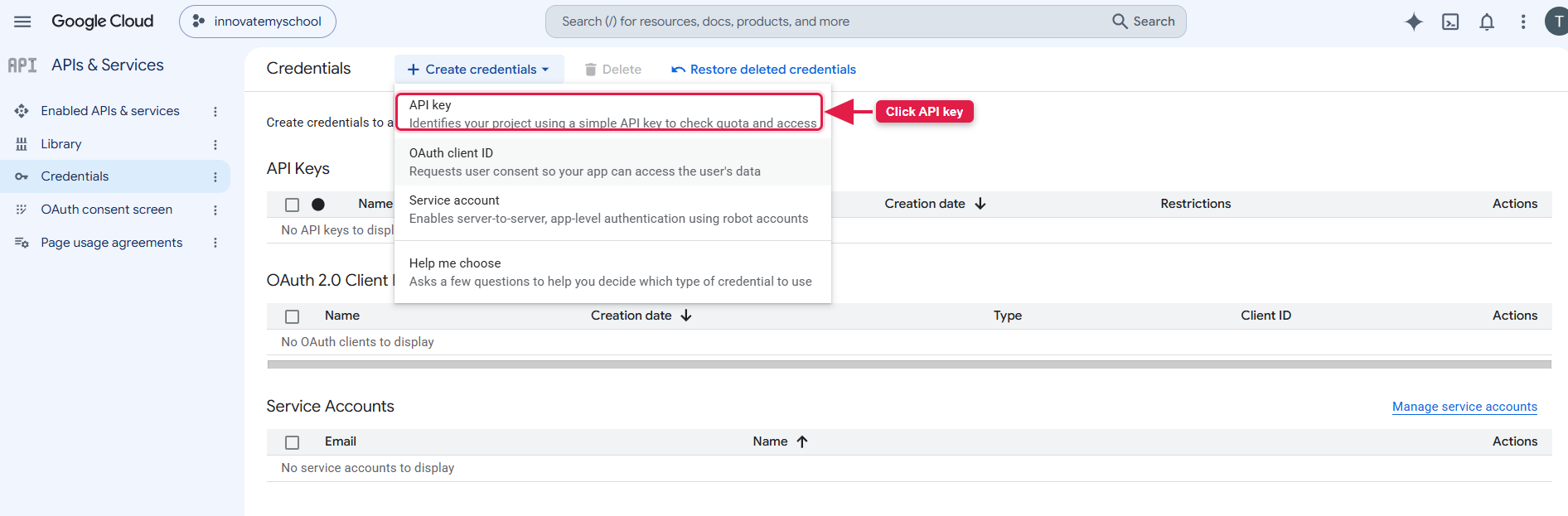
25.3. Go to APIs & Services → Credentials and select or create a project.
25.4. Click Create credentials → API key. Copy the key that is displayed.
25.5. Enable the APIs Foodie uses under APIs & Services → Library:
- Maps JavaScript API — the maps rendered in the web panels.
- Maps SDK for Android and Maps SDK for iOS — the maps in the mobile apps.
- Places API — address autocomplete and restaurant search.
- Geocoding API — converting between addresses and coordinates.
- Directions API and Distance Matrix API — delivery routes, distance and ETA.
25.6. Restrict the key to your domains (HTTP referrers) for web use, and to your package name + SHA-1 for Android, then save.
25.7. Add the key in the admin panel under Settings → Map Settings, and in each mobile app — see Google Maps API Key (Flutter).