16. Admin Panel Setup
The Admin Panel is a Laravel 12 application. Ensure your server meets the requirements in the Server Requirement section. Upload the Admin Panel package to your server (domain or subdomain) and extract it.
16.1. Create Database
The admin panel uses MySQL only for admin authentication (users, roles, permissions), sessions and
jobs. Create a database and user from your server’s control panel.
16.1.1. Open MySQL Databases in cPanel.
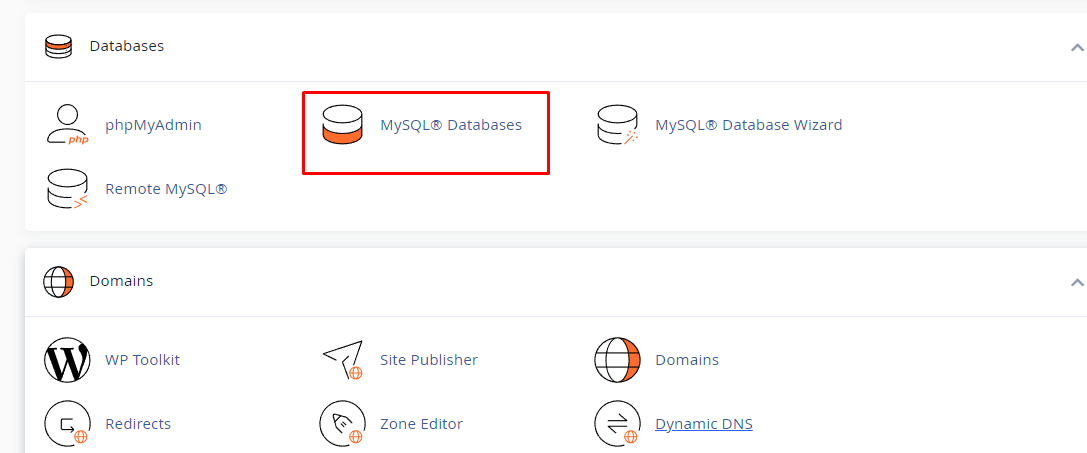
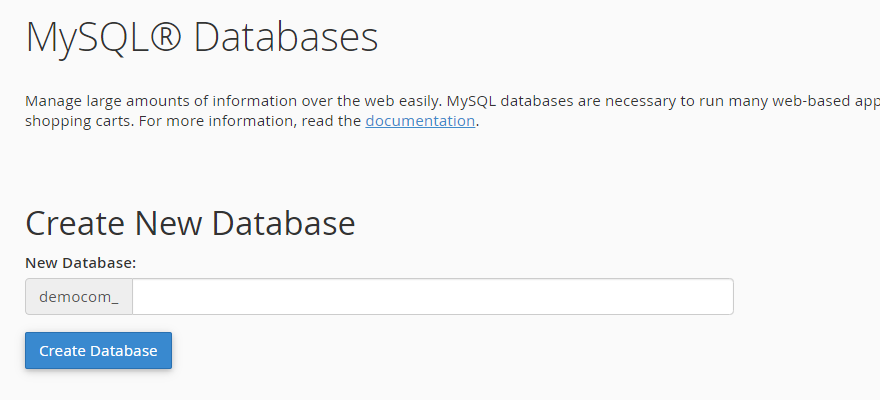
16.1.2. Create a new database.
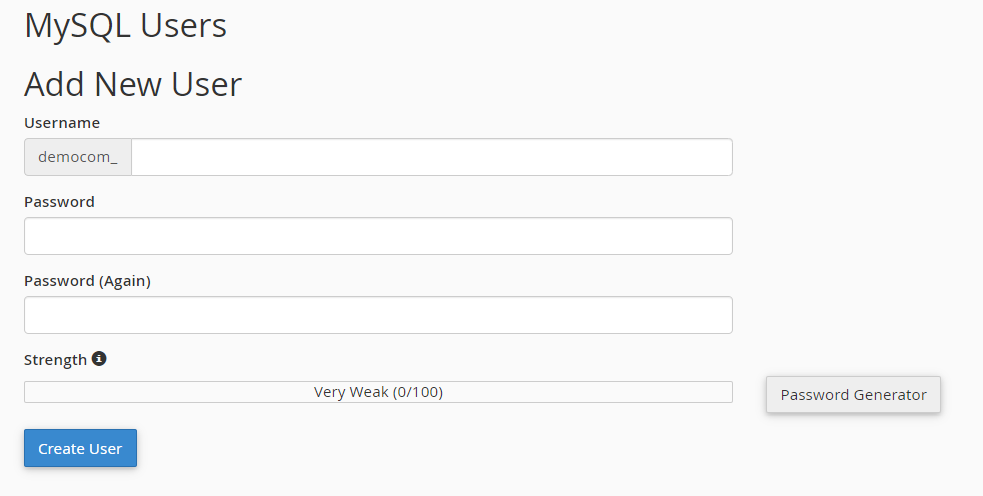
16.1.3. Create a new database user.
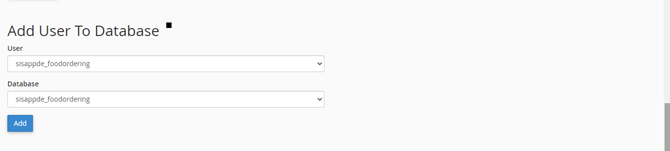
16.1.4. Add the user to the database.
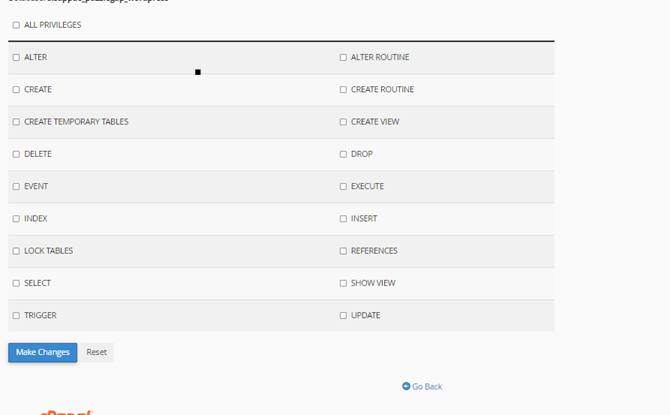
16.1.5. Grant “ALL PRIVILEGES” and click “Make Changes”.
16.2. Configure the Admin Panel
16.2.1. Install dependencies and generate the application key:
composer install
cp .env.example .env
php artisan key:generate
php artisan migrate --seed
npm install
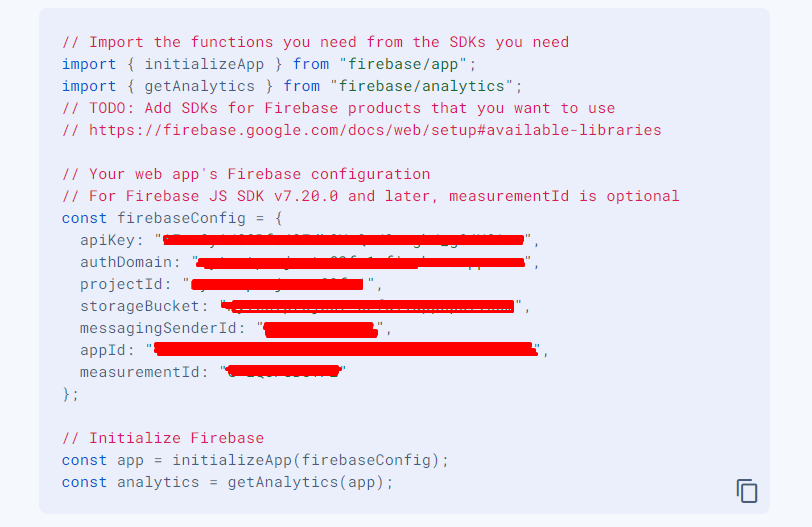
16.2.2. Edit the .env file and configure the database connection and your
Firebase web app credentials:
DB_DATABASE=your_database
DB_USERNAME=your_db_user
DB_PASSWORD=your_db_password
FIREBASE_APIKEY=
FIREBASE_AUTH_DOMAIN=
FIREBASE_DATABASE_URL=
FIREBASE_PROJECT_ID=
FIREBASE_STORAGE_BUCKET=
FIREBASE_MESSAAGING_SENDER_ID=
FIREBASE_APP_ID=
FIREBASE_MEASUREMENT_ID=
# Firestore named database — '(default)'
FIRESTORE_DATABASE_NAME=(default)
# Node binary path used by the cron/utility scripts
NODE_PATH=
To obtain these Firebase credentials, open the Firebase Console → Project Settings → General →
Your apps → Web app, and copy the config values.
16.2.3. Place your Firebase service account file at
storage/app/firebase/credentials.json (Project Settings → Service accounts → Generate new
private key). This is required for server-side ID-token verification and FCM.
16.2.4. Run the database migrations and seeders to create the admin tables and default
admin user:
php artisan migrate --seed
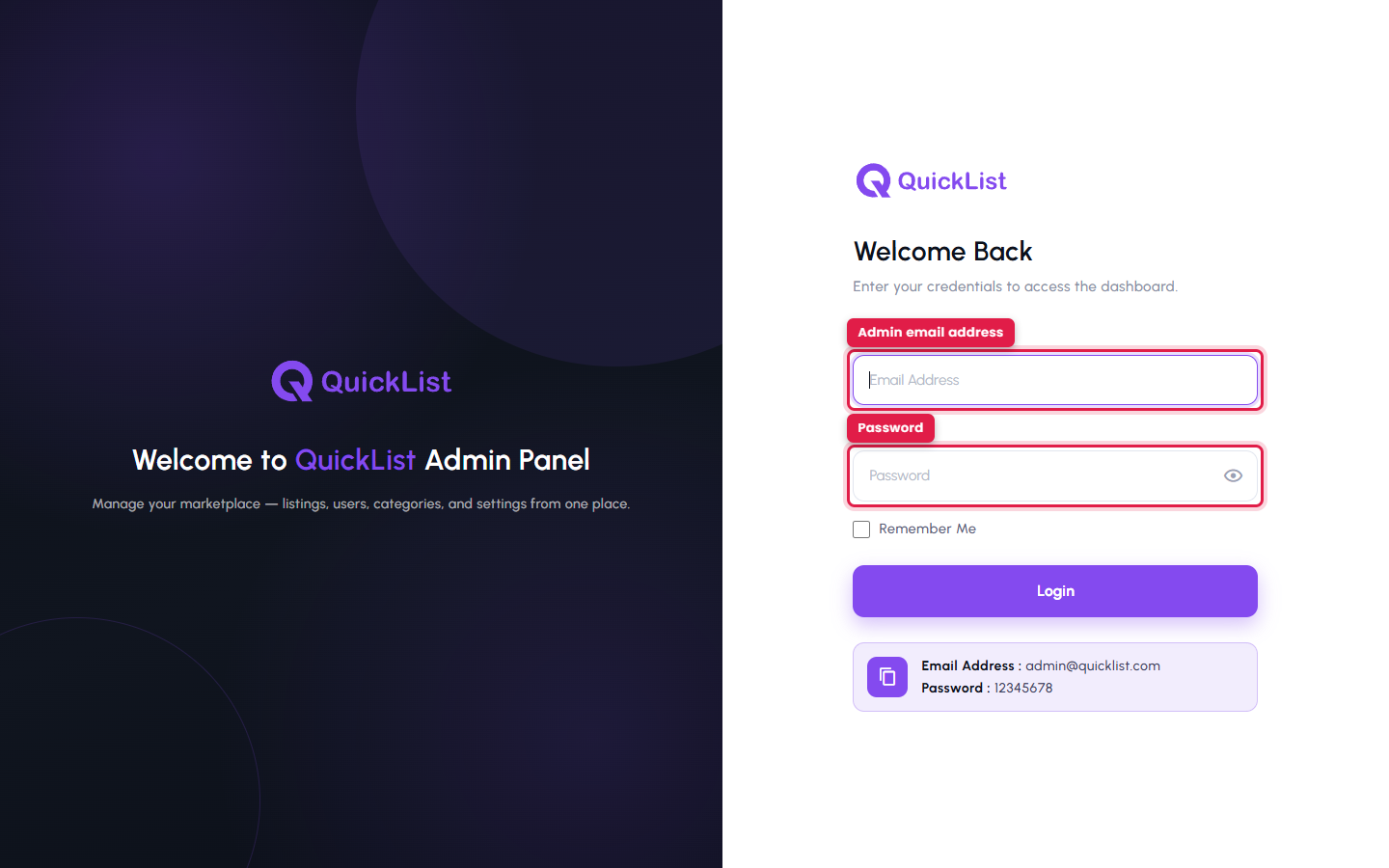
16.2.5. The admin panel is now ready. Log in with the default super-admin account and
change the password immediately:
Email:    admin@quicklist.com
Password: 12345678
Please Note:
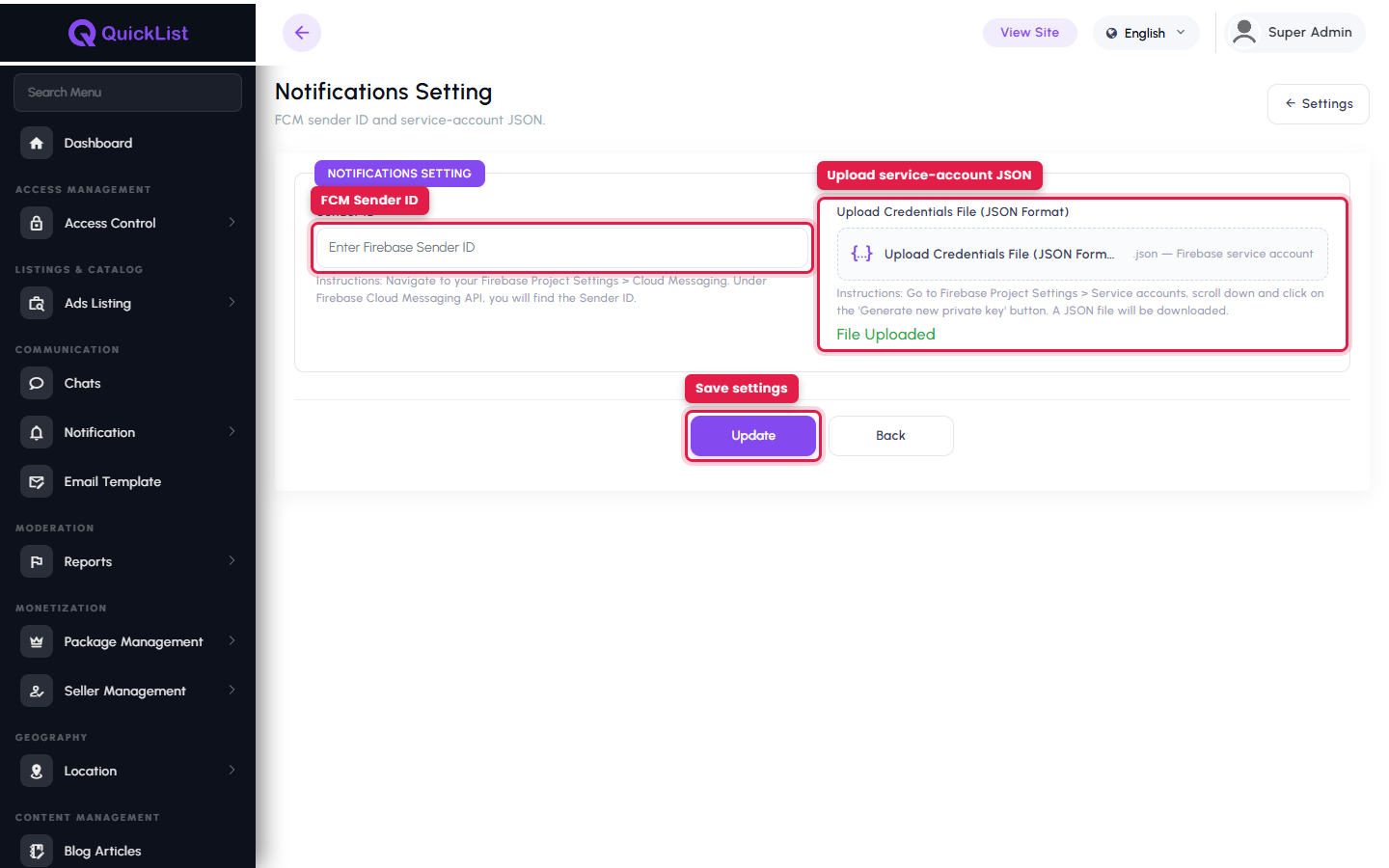
Important: For push notifications to work, upload your Firebase service-account (FCM) credentials file in the admin panel under Settings → Notification Settings, and set the Firebase Sender ID.