23. Customizing Branding (Logo & Colours)
QuickList is fully white-label — the application name, logos, favicon and brand colours can all be changed from the Admin Panel without editing any code. Branding is stored in Firebase, so a change made once is reflected across the Admin Panel, the User Panel (website) and the mobile app.
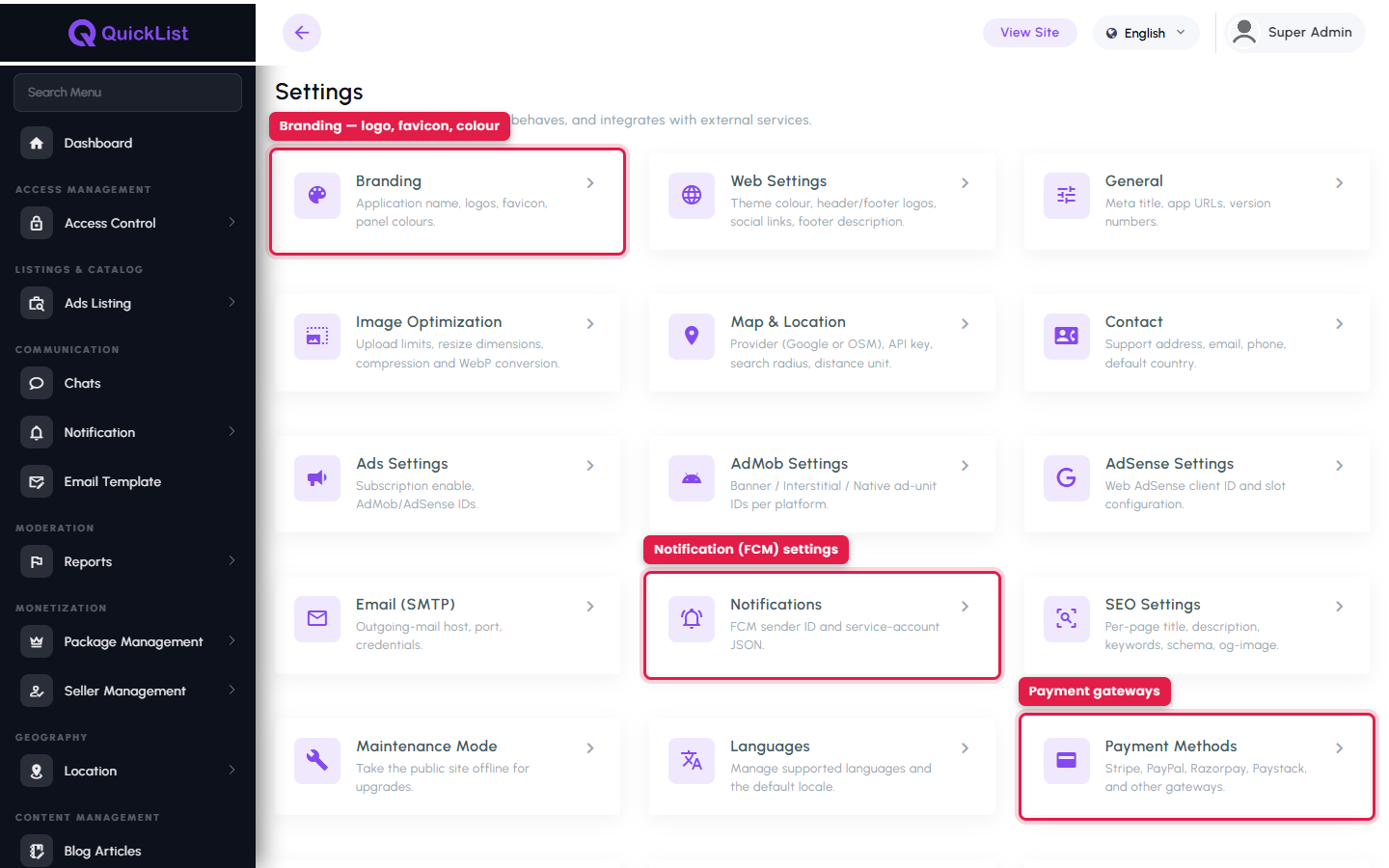
23.1. App Name, Logo & Favicon
Log in to the Admin Panel and open Settings → Branding. From this screen you can update:
- Application Name — the name shown in the panel header, browser tab and across the platform.
- Logo — upload your logo (a transparent PNG or SVG is recommended). It appears in the sidebar and on the login screen.
- Favicon — the small icon shown in the browser tab (use a square image, e.g. 32×32 or 64×64 px).
Click Update / Save. Your new logo and name appear immediately after the page reloads.
23.2. Admin Panel Colour
Still under Settings → Branding, use the Admin Panel Colour picker to set the primary accent colour of the admin interface (buttons, active menu items, highlights). Pick a colour or paste a hex value (for example #844AEF) and save.
23.3. Website Theme & Logos (User Panel)
The public marketplace’s appearance is controlled from Settings → Web Settings:
- Theme Colour — the primary colour used across the website (buttons, links, badges). This drives the site’s
--ql-primarytheme variable. - Header / Footer Logos — the logos shown in the website header and footer.
- Social Links & Footer Description — footer content and social media links.
Please Note:
Use the same Firebase project for the Admin Panel, User Panel and mobile app so that branding changes propagate everywhere. Clear your browser cache if an updated logo or colour does not appear right away.
23.4. Mobile App Branding
For the Flutter mobile application, branding is set in the source code before building:
- App Name — see 5. Changing the App Name.
- Launcher Icon — see 4. Changing the Launcher Icon.
- Package Name — see 3. Changing the Package Name.